Last Updated on February 24, 2025 by Clark Omholt
A significant number of Mac users have reported issues with their printer drivers becoming corrupted after updating their OS. The symptoms include: driver presets not saving, the driver settings not being “sticky”, and other related issues.
The way to solve this problem is to re-install the driver, but the process requires following particular steps to be successful. I will demonstrate how this is done on MacOS 15 (Sequoia) with both an Epson (P7570) and Canon (Pro-2600) large format printers.
How to Fix MacOS Corrupted Printer Driver – Demonstration on Epson and Canon Printers
1. Epson P7570
- From Apple menu, choose System Settings / Printers & Scanners
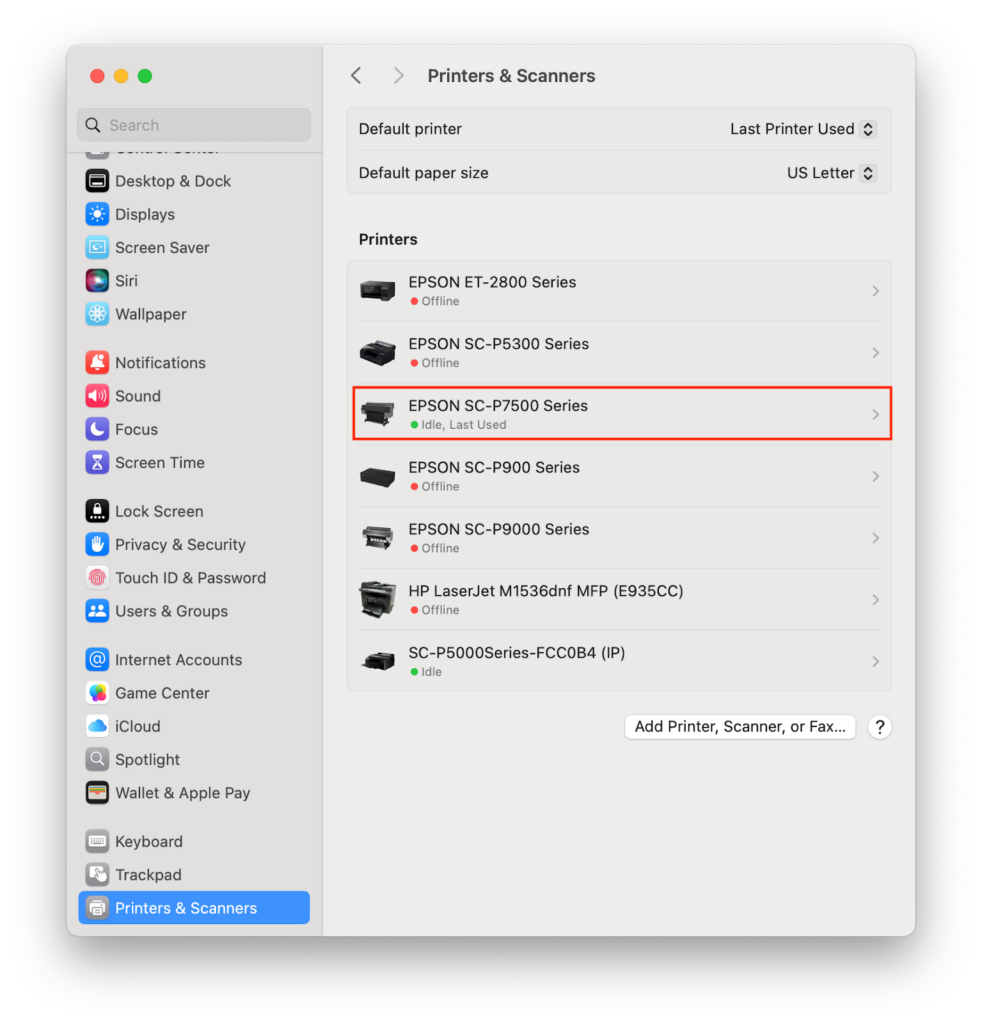
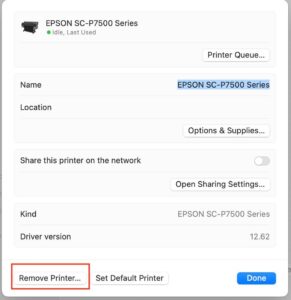
- Highlight the printer of interest and click “Remove Printer”
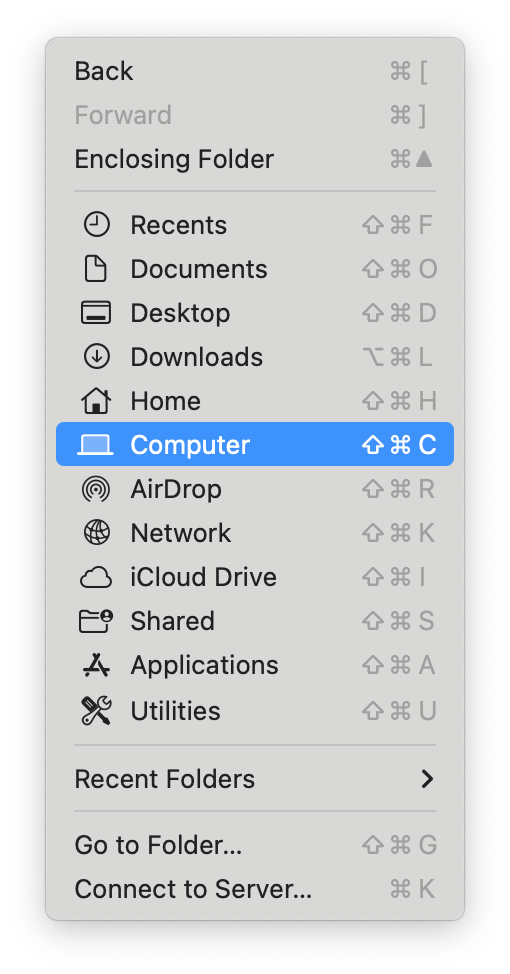
- Select your computer’s Hard drive, labelled “Macinstosh HD” by default. This can be done from the Finder, selecting the “Go” pulldown menu.
- Select Library/Printers/Epson and place the Epson folder in the Trash. Note: This will remove all installed Epson printer drivers. You’ll need to reinstall any printer drivers that you still need.
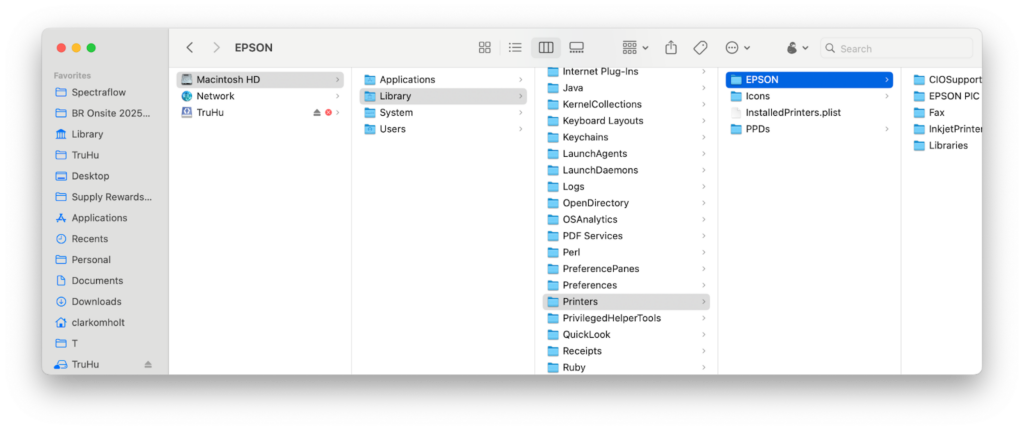
- Empty Trash
- Restart the Computer
- Go to the Applicable Printer’s Support Page (here’s the link for the Epson P7570). You will need to specify your operating system. Download the “Drivers and Utilities Combo Package”.
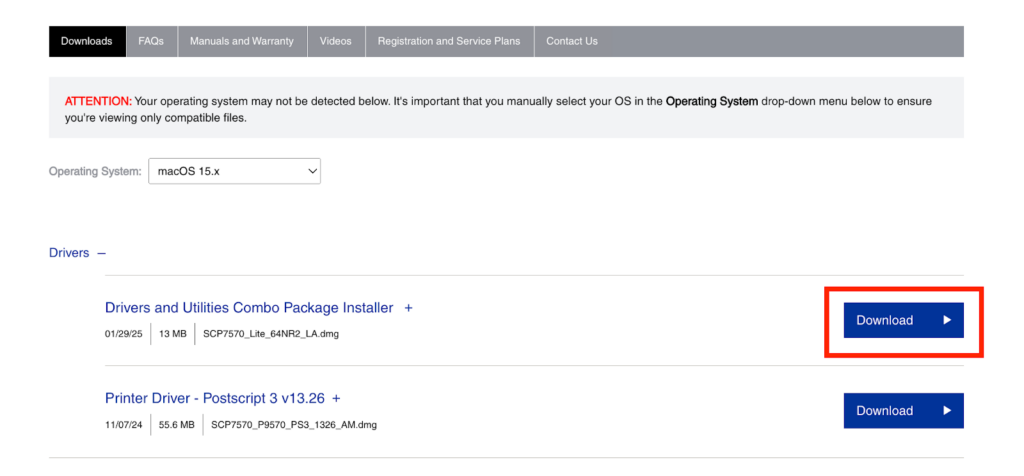
- Open the file you downloaded, and follow the on-screen instructions to install the driver software. Make sure the printer is connected to your computer while you install the driver. The Epson Media Installer will launch at the end of the process, but you can just quit out of that for the moment.
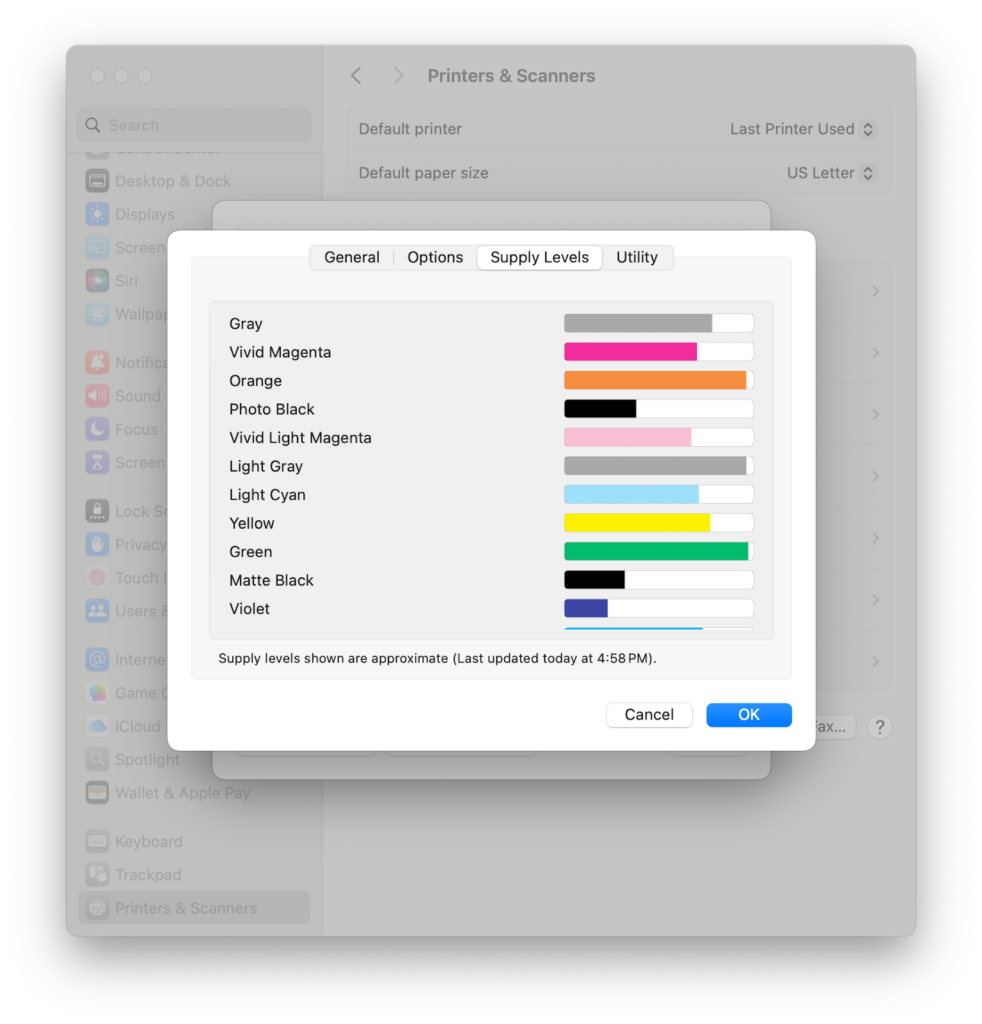
- Your printer should now be found in your System Settings / Printers and Scanners. To confirm that you have a connection, you can click on the printer / Options and Supplies button / Supplies tab. If it shows your ink levels, you are good to go.
2. Canon Pro-2600
- Go through steps 1-6 in the earlier part of this article to remove the old printer. Though, for this case, be sure to throw out the Canon folder.
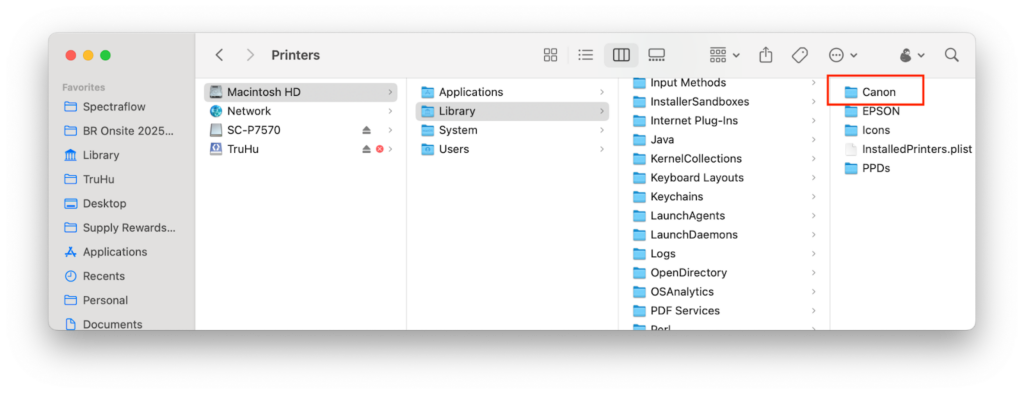
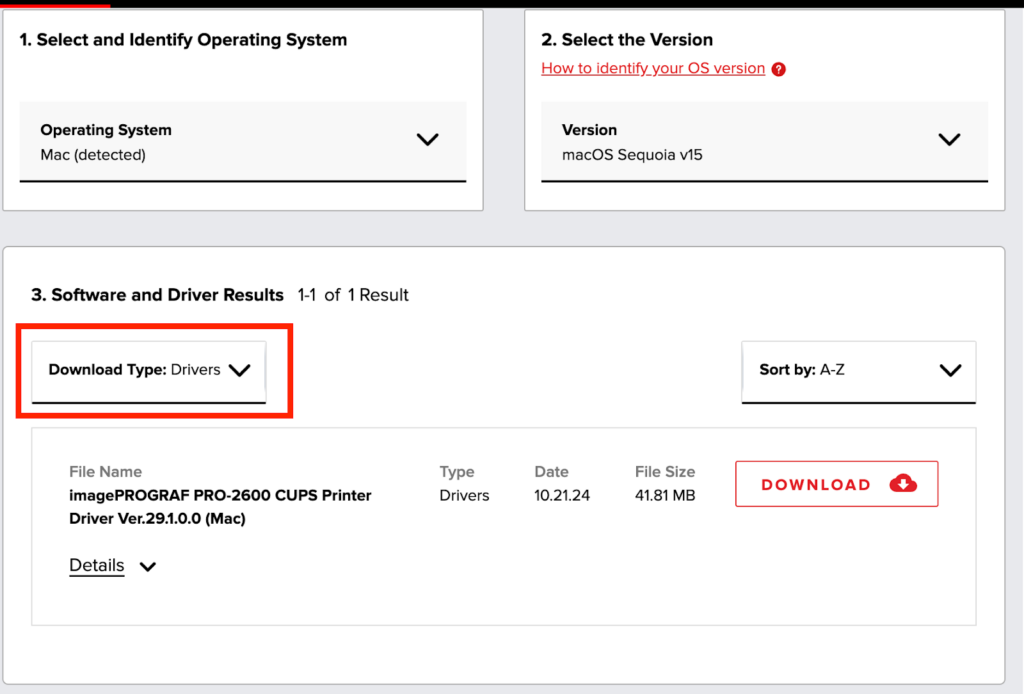
- Go to the Applicable Printer’s Support Page (here’s the link for the Canon Pro-2600). You will need to specify your operating system. Download the “CUPS Printer Driver”. Note: You can spare yourself a bewildering array of options by specifying Download Type = Drivers.
- Unlike Epson, Canon will allow you to connect via Wifi. First make sure that you’ve added the printer to your Wifi from the printer’s control panel. Also, make sure the printer is “awake” during this process.
- Open the file you downloaded, and follow the on-screen instructions to install the driver software.
- Go to System Settings / Printers and Scanners and add the printer.
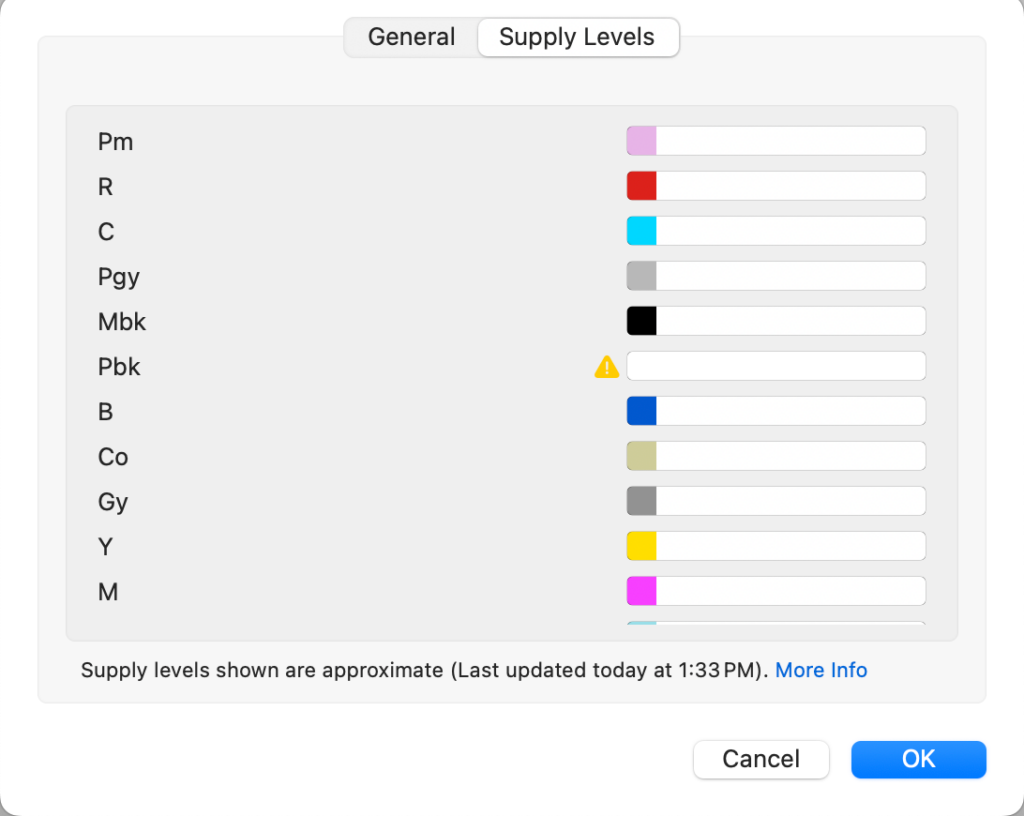
- And, again, you can confirm the connection by selecting the “Supply Levels” tab.
Hope this helped you sort out your driver issues post MacOS update. For any other color issues on MacOS and Windows, remember to check back in with the TruHu blog.