Last Updated on March 19, 2026 by Clark Omholt
HDR stands for High Dynamic Range. In this article, I’ll explore the background behind the term HDR, when it first became popular, how to determine whether your monitor is HDR, how to configure your HDR display, and how to calibrate it. Finally, I’ll end with some FAQs relating to HDR.
What Exactly Is HDR?
HDR stands for High Dynamic Range, and is an imaging / video / broadcast standard that is intended to improve image quality – brighter brights, darker darks, extended color range. HDR contrasts with the older SDR (Standard Dynamic Range).
Background
The pre-HDR era (before ~2010) was dominated by SDR – Rec. 709, ~100 NITS of luminance, 8-bit color (256 levels), gamma-based transfer curves, and a limited color gamut. The range of color, brightness and contrast that humans can perceive vastly exceeds SDR.
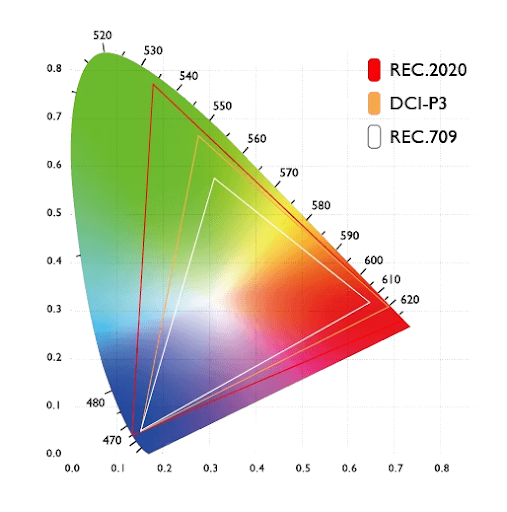
As display and cinema technologies evolved, some of the key industry players started promulgating alternatives, so creative visions could be more faithfully reproduced. For instance, in 2005 the Digital Cinema Initiative released the DCI-P3 color space specification, which expands the color space from Rec. 709. Subsequently, the Rec. 2020 spec was published (in 2012, go figure). This pushed things further, expanding the color range to most of human vision. With this much range, additional bit depth was needed to avoid banding, so Rec 2020 offers both 10-bit (1024 levels) and 12-bit (4096 levels). This is now the standard color space for HDR.
In 2014, Dolby Labs introduced the first HDR format, Dolby Vision, which included a transfer function (PQ) that is defined up to 10,000 NITs. Later they added 12-bit color and dynamic metadata (scene-by-scene tone mapping). And in 2015 the CTA introduced HDR10, which codified HDR for 4K video.
Wait, so Is My Monitor HDR or Not?
There are a couple of ways to answer this question.
Max Luminance
The key metric that distinguishes HDR displays from the rest is the maximum luminance they are able to achieve, as measured in NITS. Originally, a consumer-level display or TV was required to achieve up to 1000 NITS of luminance to be considered HDR. And then the marketing folks got involved. Now we have DisplayHDR 400 (which I consider pretty meaningless), DisplayHDR 600 (now we’re getting somewhere), and DisplayHDR 1000 (true HDR).
In defense of marketing people…you shouldn’t need more than 400 NITs on your computer display, which is usually about a meter from your eyes. On the other hand, a TV that’s 5 meters away and is next to a big window could arguably benefit from 1000 NITs. And as we all know, the intensity of light decreases with the square of the distance from the source.
Contrast Ratio
As discussed earlier, another metric that plays into HDR compliance is color gamut. And yet another is contrast ratio – max lum / min lum. While HDR doesn’t specify a required contrast ratio, if the contrast ratio is < 1000:1, and you are at a luminance of 600+, odds are your blacks are looking more like dark gray.
A contrast ratio of 20,000:1 is safely HDR. Today this can only be achieved with OLED or Micro-LED because these technologies have no backlight, and min lum is True Black. It’s worth noting, however, that unless you are in a darkened environment, this kind of contrast ratio won’t buy you much.
If you’d like to determine whether your display is HDR you can go to the manufacturer’s website and review the 1) Max lum, 2) Color gamut, 3) Contrast ratio. Or…if it is 2024 or later, you can just ask your favorite AI, keeping the above info in mind.
Configuring HDR Displays in Windows 10/11
Windows 10/11 does offer some hooks to get the most out of HDR. We cover in more detail in our Deep Dive on Color Management Settings in Windows 10 and 11 blog entry, but I will summarize a few points here.
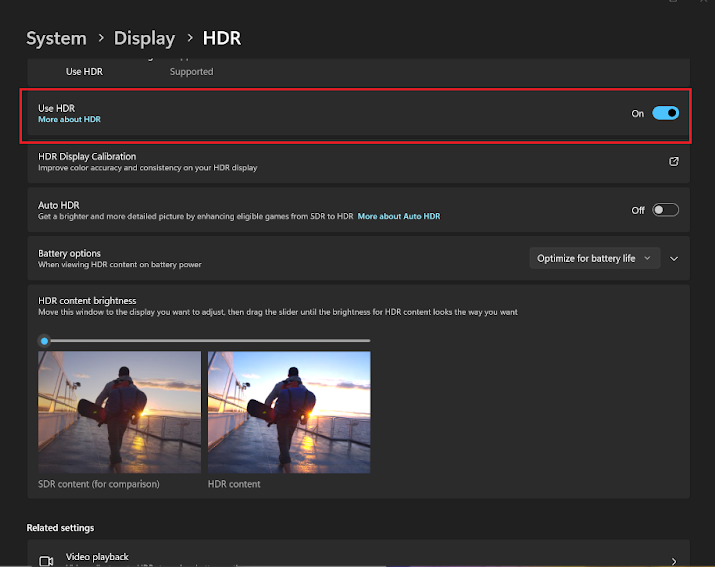
- Enabling HDR – You can turn on HDR in the Display Settings. This should allow you to stream HDR content more faithfully.
- HDR Calibration – Microsoft offers a visually-based method to optimize your HDR highlights and shadows. I think it is an improvement over nothing, but not as good as something measurement-based.
- Auto HDR (Win 11 only) – automatically calibrates compatible applications, typically Xbox Games Pass games. Do NOT use with the visual HDR calibration mentioned just above.
Calibrating your HDR Display
During its development TruHu was only tested at non-HDR luminances (400 or less), so we are honestly not so sure how well it works at 400+. If you have a true HDR display, you can download TruHu here and try it out at no charge. Please send your feedback to [email protected], and then we can update this article.
For a solution specifically designed for HDR, you can try Sypder Pro ($269 as of March 2026), or Calibrite Pro HL ($279). These solutions are included in our Best Display Calibration Tool article.
Frequently Asked Questions about HDR
1. Is HDR worth it for color grading?
Yes, an HDR display is pretty much a requirement for Color Grading these days. For instance, both Netflix and Disney require that color grading be performed on a display capable of 1000+ NITs.
Aside from these requirements, there’s a good common sense reason to do your grading in HDR. If you need something delivered in SDR, you can always “down-convert” from HDR to SDR without compromising quality, but you can’t go the other way from SDR to HDR.
2. Why can’t I use HDR even though my monitor is supposed to be HDR?
First, check that the “Use HDR” option is turned on in System > Display > HDR. If you do not see that option, that means your monitor is not being recognized as HDR. If the option is on but the screen colors look “off”, reset your graphics adapter by using Ctrl + Windows + Shift + B.
3. What’s the difference between HDR and HD?
A simple way to think of this is HD (High Definition) has to do with the number of pixels and HDR (High Dynamic Range) has to do with the quality of those pixels. HD describes your display’s resolution – it must be 1920×1080 pixels or greater to meet the definition of HD. 4K, also known as UHD (Ultra HD), has a resolution of 3840×2160 or higher.
4K is now very common in larger TVs but still relatively uncommon in desktop displays. It’s an unusual instance where more is not necessarily better. For instance, some people claim that fonts get too small to read on 4K displays. Also, 4K displays are about twice the cost of the HD alternatives and are generally not worth in for standard office applications.
4. How do I turn off HDR?
On the Mac
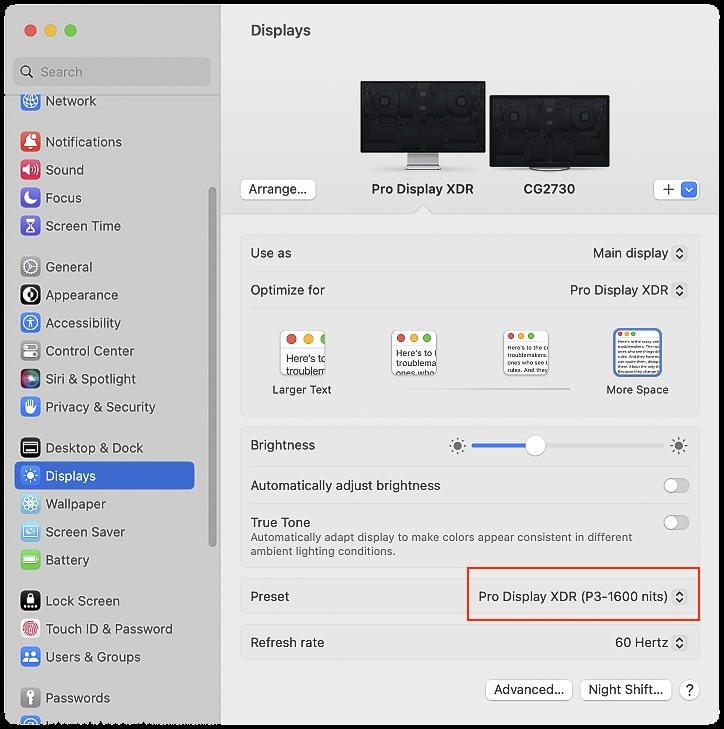
If you own an Apple Pro Display XDR, you can toggle between Extreme Dynamic Range (XDR – 1600 NITS), Pure HDR (P3-ST 2084 – 1000 NITS) and Apple Display (P3-500 NITS), which is in effect turning HDR off.
On Windows
Open Settings and go to System > Display > HDR. There, turn the “Use HDR” option off.
Summary
I hope you’ve enjoyed your brief but information-full tour of HDR. You should now have a clearer understanding of:
- The difference between HDR and SDR
- How to tell if your monitor is HDR and if you need HDR for your work
- How to configure and calibrate your HDR display (we hope you’ll give TruHu a try)
- Some of the more common FAQs related to HDR
If there’s something you wish we had included in this article, or if you have any general feedback, please let us know.